In-game HUD — overview
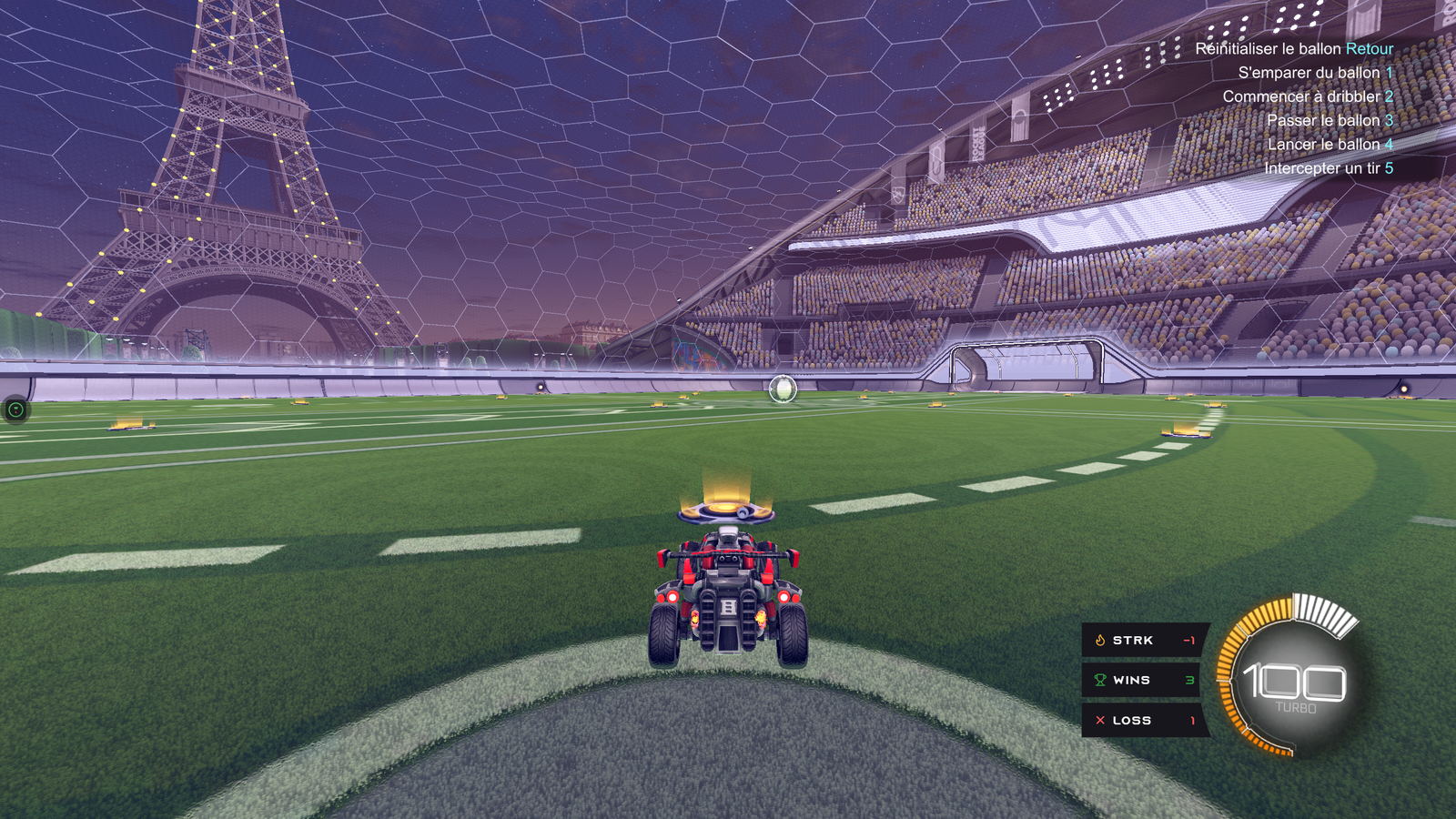
The in-game HUD is a small transparent window placed on top of Rocket League that shows your live session stats (wins / losses / streak) without interfering with gameplay.
What it's for
- See your live session without Alt-Tabbing.
- Stream your screen with wins/losses visible in the capture if you don't want to set up OBS.
- Keep an eye on your streak so you know when to stop (or keep going).
Show the HUD
- Open RL Stats Overlay.
- In the In-game HUD section, click ▶ Show HUD — a transparent window appears in the center of your primary monitor.
- Turn on Edit mode to move and resize it.
Borderless required
⚠️ Rocket League must run in borderless fullscreen for the transparent window to show on top of it.
In Rocket League: Settings → Video → Window Mode → Borderless.
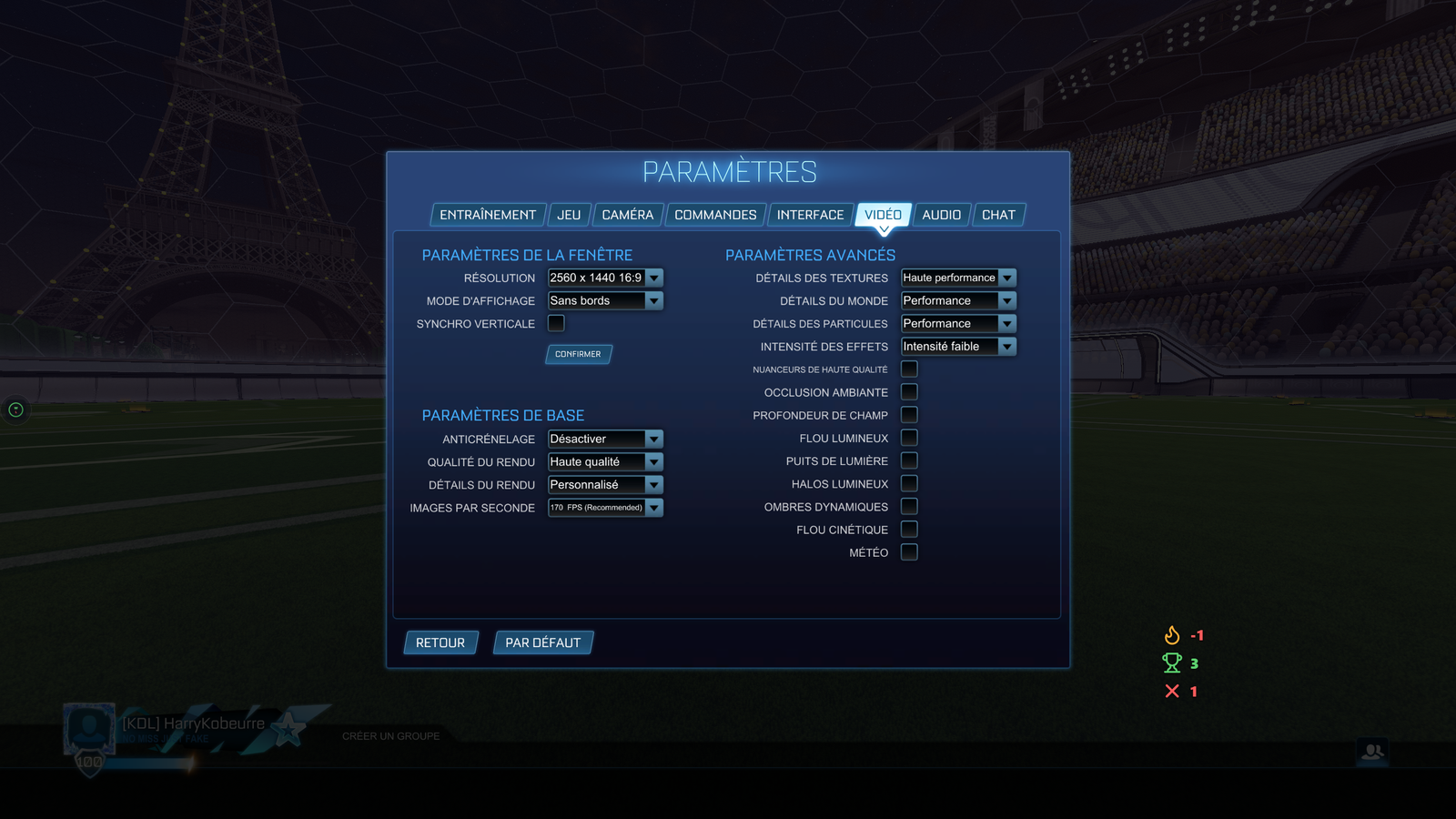
Exclusive "Fullscreen" mode is not supported by Windows for overlays — that's a system limitation, not the app's. See also Troubleshooting.
Right-click menu
Right-clicking the HUD opens a quick menu:
- Reset session — wins/losses go back to zero.
- Lock / unlock — toggles Edit mode.
- Quit — fully closes the app.
Going further
- Edit mode — move, resize, percent-perfect scaling.
- Floating launcher — quick access to settings from the edge of the screen.
- Auto-hide — show/hide the HUD automatically with Rocket League.