Bundled themes
RL Stats Overlay ships with 4 ready-to-use themes. You can switch between them from the Theme section in settings, or build your own (see Designer guide).
Gallery
-
Circle
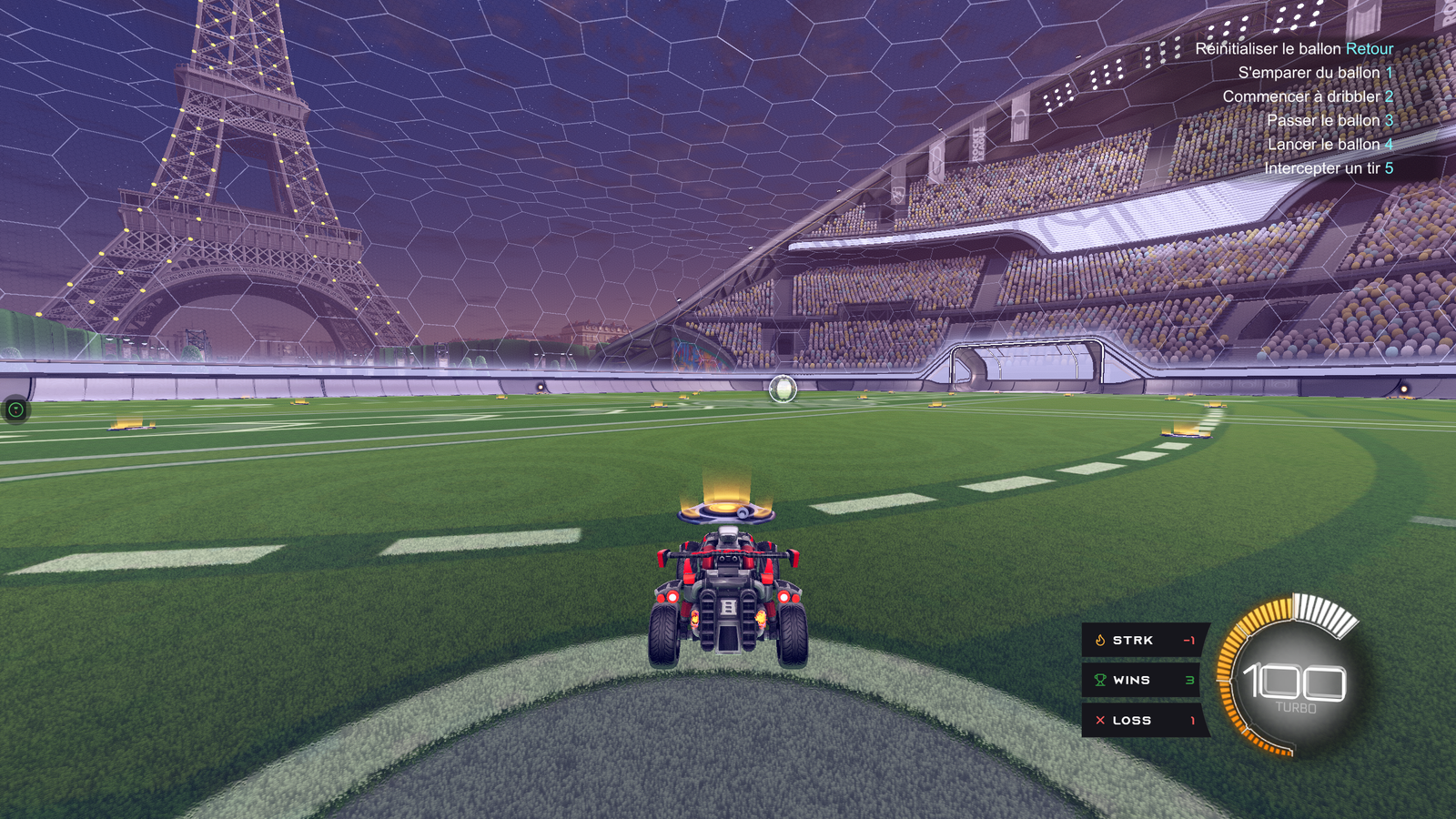
The default theme. Three stacked cards (Streak / Wins / Losses) with a concave right edge that wraps around Rocket League's boost gauge.
-
Default
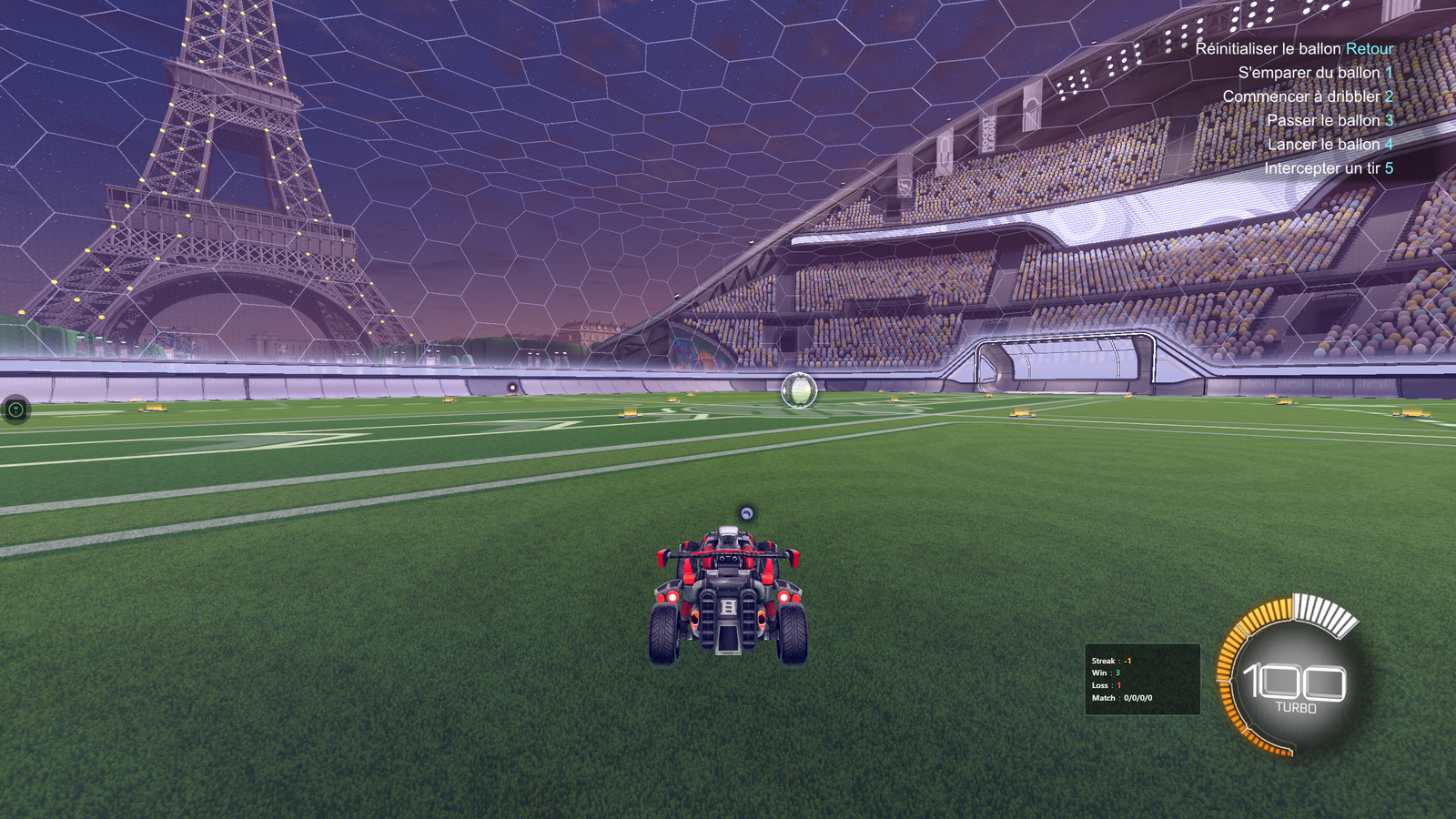
The most discreet. Small semi-transparent slab with three lines of text. Ideal for a neutral look that blends into any scene.
-
Minimal
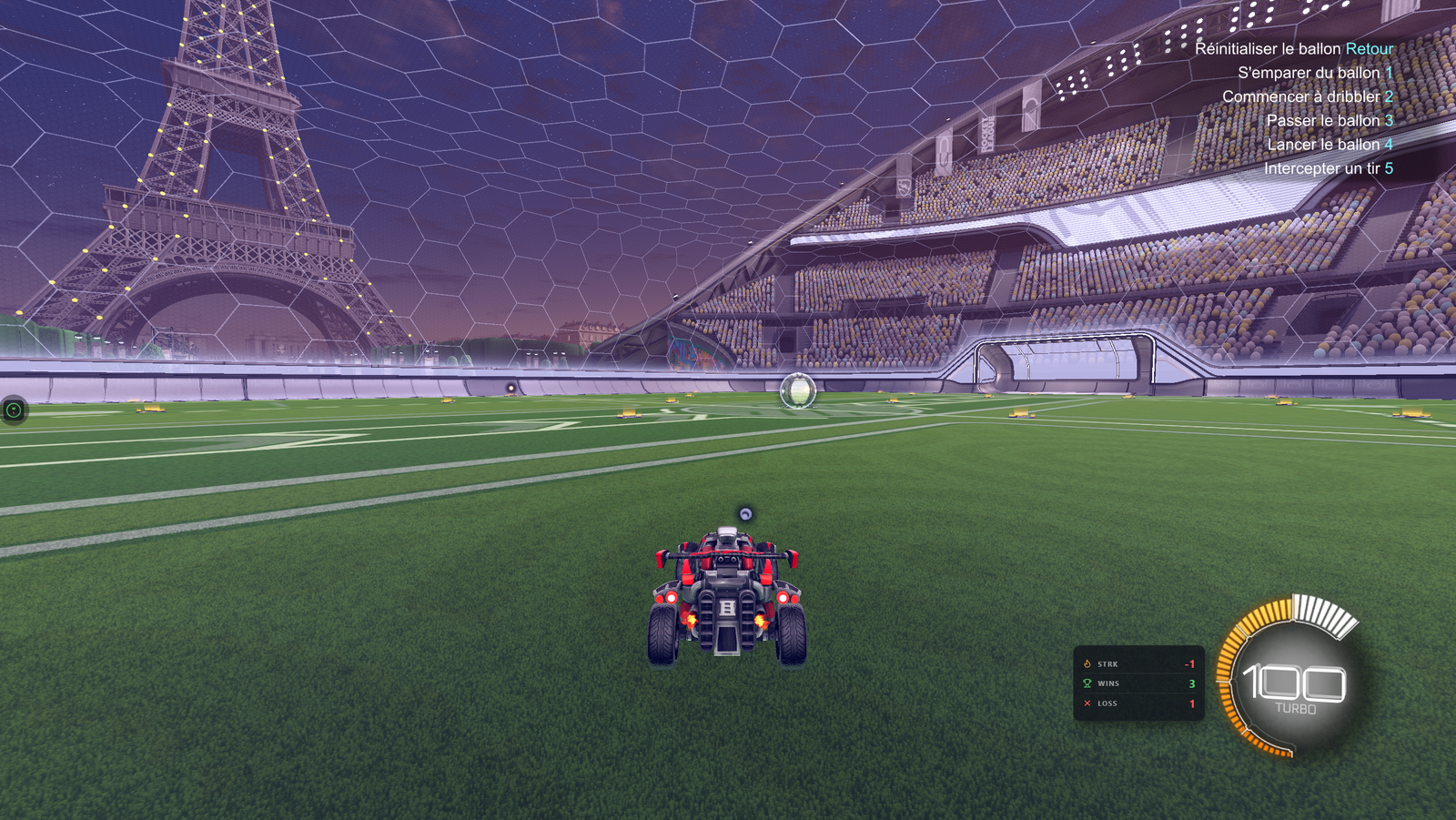
Discreet glass. Flat panel with backdrop-filter blur. Big values, small caps labels. Perfect for streamers who want a clean HUD.
-
Redesigned
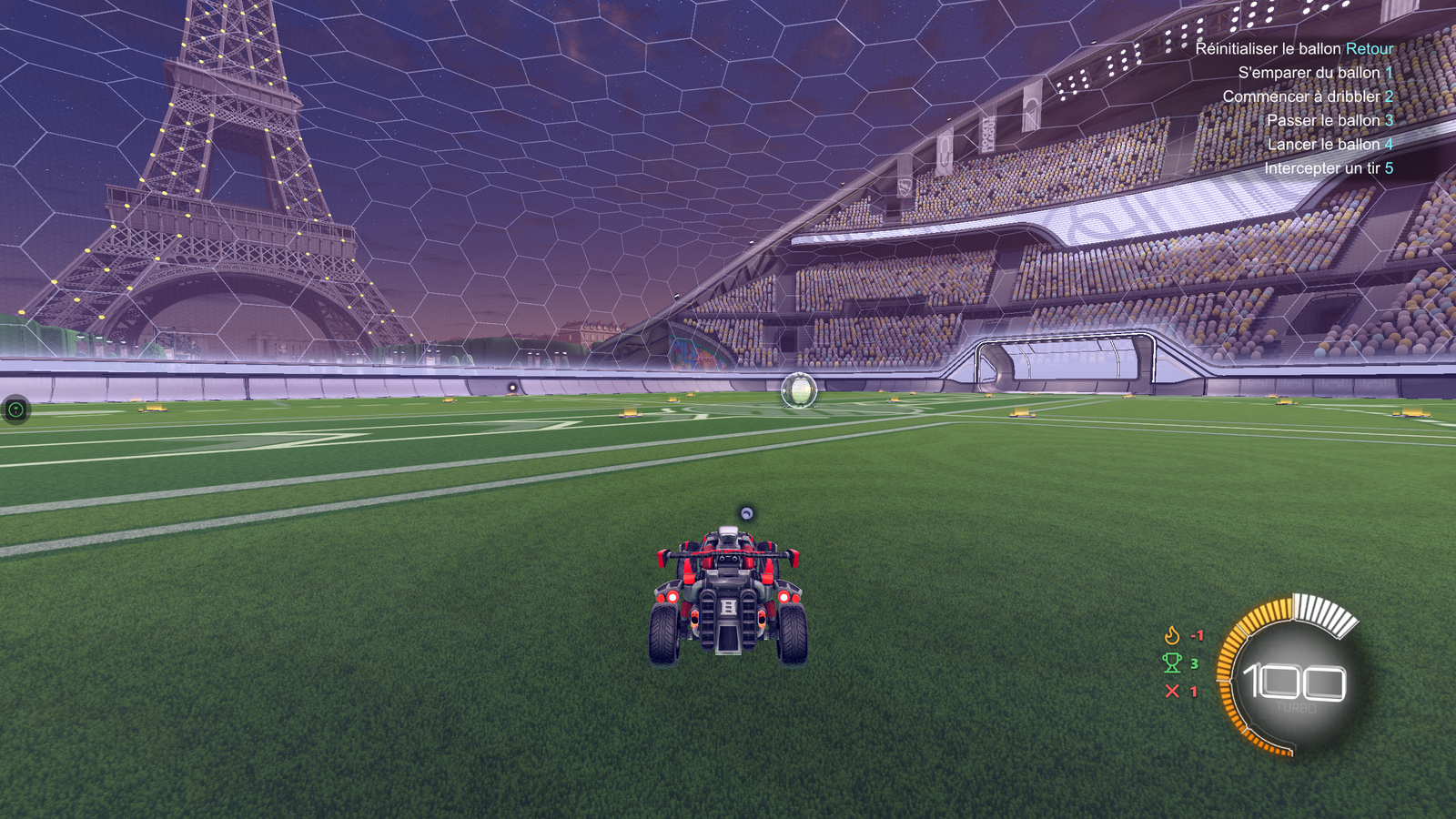
No slab. Three giant colored icons paired with bold numbers, no background. Highly readable over any scene, even bright ones.
Switch themes
- Open the settings window.
- Expand the Theme section.
- Pick a theme from the Active theme dropdown.
The HUD and the OBS Browser Source apply the change immediately, no reload.
Customize a theme
Each theme exposes a set of CSS variables (colors, sizes, fonts) editable directly from the Theme section. Modified values are persisted per theme — you can switch away and back, your overrides are kept.
Reset all overrides button to revert to the theme's default values.
Install a received theme
- Click 📁 Themes folder in the Theme section — Windows Explorer opens on
%APPDATA%\RLStatsOverlay\themes\. - Unzip the received theme (a folder with at least
theme.json,boost.html,boost.css). - Click 🔄 Refresh in the Theme section — the theme appears in the dropdown.
Build your own
See the Designer guide — covers theme structure, the theme.json format, HTML/CSS/JS conventions, and distribution.