Install
Three minutes, zero command line.
Download
- Open the Releases page.
- Download
RL Stats Overlay_x.y.z_x64-setup.exe(Windows 64-bit).
macOS / Linux aren't supported as official builds — the app is tested on Windows 10 / 11. For dev environments, see Contributing → Development.
Install
Double-click the downloaded .exe. The NSIS installer offers a "current user" mode — no admin rights needed.
First launch (wizard)
On first launch, the wizard walks you through:
- Detected install — the app finds your Rocket League install on its own (Steam or Epic). If detection fails, use the "📂 Pick a folder manually" button.
- Stats API activation — the app patches
DefaultStatsAPI.inifor you (with an automatic backup of the previous file). This is an official Psyonix feature, simply disabled by default. - In-game name — only if auto-detection of your Steam/Epic account failed. Otherwise this step is skipped and the overlay will identify you on the first match.
After the wizard, restart Rocket League if the game was already running while the change was applied.
Windows SmartScreen
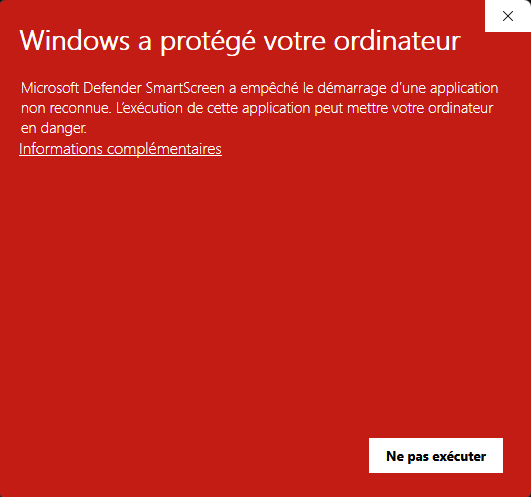
On the first launch of the .exe, Windows shows "Windows protected your PC".
This is expected: the app isn't yet signed with a paid code-signing certificate. Windows shows this warning by default on any binary from a publisher it doesn't know, regardless of the content.
To get past it (two steps):
-
On the first dialog, click the underlined "More info" link (right under the red message). At this stage only the "Don't run" button is visible — that's by design.
-
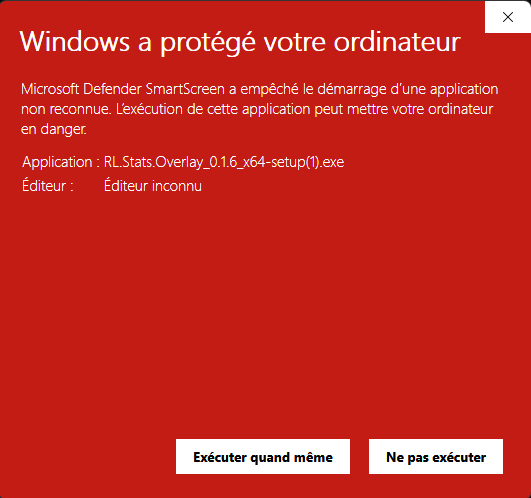
The dialog updates: you now see the file name, "Unknown publisher", and a new "Run anyway" button appears at the bottom. Click it.
The full source is public in the GitHub repo — you can submit the .exe to VirusTotal for an independent analysis. See also Troubleshooting.
Uninstall
- Via Windows: Settings → Apps → RL Stats Overlay → Uninstall.
- To also wipe persisted settings: delete the folder
%APPDATA%\RLStatsOverlay.